What changes the moment a VPN closes
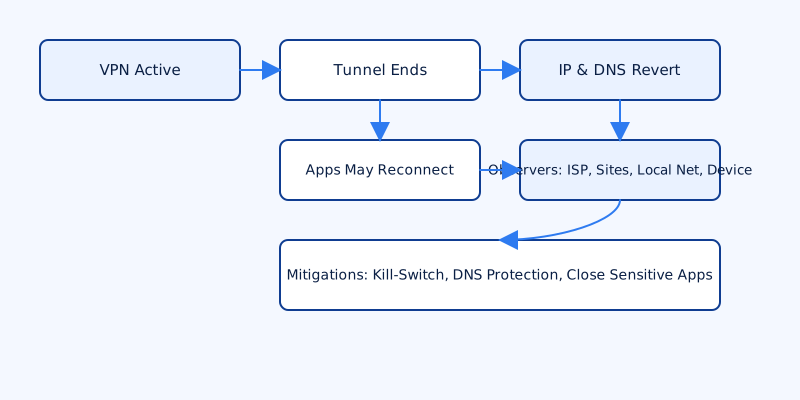
When a VPN session ends — whether you clicked “disconnect” or the client dropped — two technical things happen immediately: the encrypted tunnel is torn down and your network stack reverts to the local gateway. Practically, that means your device stops sending packets into an encrypted tunnel to the VPN server and starts using whatever network path the operating system had before the VPN: your ISP, mobile carrier, or the Wi‑Fi access point you’re on.
Consequence highlights:
- Public IP change: Sites and services will see the ISP‑assigned IP address rather than the VPN exit IP.
- DNS behaviour: DNS lookups switch to your configured resolver (often the ISP’s) unless you use DNS leak protection or have a specific resolver set at the OS level.
- Active connections: Ongoing TCP/UDP flows either fail or attempt to reconnect. Some applications simply drop connections; others silently re‑establish them over the now‑unencrypted path.
Those state changes are fast. The browser, messaging app or sync client doesn’t pause and ask permission; it follows the network stack. That’s why the split second after a disconnect is the risky period for exposing data.
Who can see your activity after disconnect
Once the VPN is off, visibility shifts back to the local network and the wider Internet path your ISP or carrier controls.
Who can see what:
- Your ISP or mobile carrier: Can observe destination IPs, DNS queries (unless encrypted DNS is enforced), and any unencrypted traffic contents. They can also see connection timing and volumes.
- Websites and online services: See your real IP address and can correlate sessions if persistent identifiers (cookies, HTTP auth, tokens) remain. That correlation can link activity before and after the disconnect.
- Local network operators and admins: A café, hotel or corporate Wi‑Fi admin can inspect unencrypted traffic and, on poorly managed networks, perform HTTP man‑in‑the‑middle interception. They cannot decrypt TLS traffic without a specific MitM setup and user acceptance of a fake certificate.
- Device‑level monitoring: Employer MDM, endpoint agents, or local software can continue logging activity on the device regardless of VPN state. A VPN doesn’t override locally installed monitoring software.
Manual disconnect vs unexpected drop — why it matters
Disconnecting deliberately and noticing an abrupt VPN drop are different operational events. A manual disconnect gives you time to prepare; an unexpected drop does not.
With a manual disconnect you can close banking tabs, pause file syncs, stop large uploads, or enable alternative protections (firewall rules, disabling Wi‑Fi) before the VPN stops. That reduces the chance sensitive data leaves unencrypted.
An unexpected drop creates a short window where apps may immediately try to reconnect using the now‑unprotected network. How each protocol behaves matters:
- Short‑lived UDP flows: Often fail and stop; the app may retry, which can expose metadata (destination IPs, retry timing).
- Long‑held TCP connections: Might reset and reconnect; some clients transparently re‑establish sessions and resume transfers without user interaction.
- Reconnection attempts: Can leak DNS queries and authentication metadata, for example login retries, which reveal which service you’re trying to reach even if the payload is encrypted.
Because reconnect attempts can reveal destination services and authentication patterns, a dropped VPN can be more damaging than a controlled disconnect.
Common leak types and how to check for them
After a disconnect there are a handful of common leaks to be aware of. You can test for most of them reasonably quickly.
IP leaks — when your true public IP is visible. Check with “what is my IP” services before connecting, while the VPN is active, and after disconnecting. The public IP should switch back to your ISP’s address after disconnect; if it flips unexpectedly while the VPN is supposed to be active, that indicates a leak.
DNS leaks — DNS queries go to your ISP’s resolver instead of the one the VPN provided. Use a DNS leak test tool in a browser to see which resolver receives queries. Run the test while the VPN is connected and again after disconnect to confirm behaviour.
WebRTC and IPv6 leaks — browser features like WebRTC can reveal local or public IPs unless restricted, and native IPv6 traffic can bypass an IPv4 VPN tunnel. Run browser leak tests that check WebRTC and IPv6 separately, or disable WebRTC and IPv6 in your OS/VPN settings if you don’t need them.
Remember that cookies, cached page content and local browser history are unaffected by a disconnect. Those artifacts can still link your sessions across the VPN boundary: a site you logged into under the VPN will remain logged in after disconnect unless you log out or clear cookies.
Practical steps to protect data when a VPN disconnects
Protecting your data around disconnects is mostly about preventing automatic, unprotected reconnections and reducing what is exposed if a drop happens. These are practical, immediately actionable precautions.
Enable a kill switch. A kill switch blocks all network traffic if the VPN drops. On desktop and mobile clients this is often a single toggle in settings. When active, your device cannot fall back to the ISP path until the VPN reconnects or you manually allow traffic.
Use DNS leak protection and handle IPv6 deliberately. Either force DNS resolution through the VPN’s resolver or enable encrypted DNS (DoH/DoT) at the system level. If your VPN does not support IPv6 safely, disable IPv6 in the operating system to avoid native address leaks.
Pause or close sensitive apps before disconnecting. Stop file syncs, torrent clients, remote backups, and logout of banking, email and critical services if you plan to disconnect manually.
Prefer auto‑reconnect plus a kill switch. Auto‑reconnect restores protection quickly after a drop; the kill switch prevents interim leaks. Together they reduce both the window and the likelihood of exposure.
Use HTTPS and session hygiene. Rely on TLS (HTTPS) for web traffic — it protects content even if your IP and DNS are visible — and sign out of sensitive sessions or clear site data if you suspect exposure. Enabling multi‑factor authentication (MFA) is a good complement; if credentials are retried or partially exposed, MFA stops account takeover.
Tip: VPN4All and many modern VPN apps include kill switches and DNS leak protection — enable them in settings. If you manage your own firewall, add rules that block traffic when the tunnel interface is down.
After the fact: what your VPN provider and others may retain
Disconnecting doesn’t pull back data that already left your device while the VPN was active. Recipients and network intermediaries may have logs or cached data that you cannot erase.
What your VPN provider can see depends on its logging policy and the laws where it’s based. Typical items a provider may have access to include connection timestamps and the IP address you connected from, and the VPN exit IP you used. If a provider's policy is to keep minimal or no logs, there will be less data retained, but policies and jurisdictions differ — read the provider’s published policy and any independent audits if privacy is essential.
Your ISP may keep logs of unprotected traffic after a disconnect. How long and what they retain varies by company and country. Similarly, destination services (websites, cloud providers) can keep records of connections and content they received while you were connected or after you disconnected.
If privacy is critical, combine a privacy‑minded VPN with disciplined operational habits: use MFA, avoid persistent logins for sensitive accounts, clear session cookies when necessary, and assume that anything transmitted could be logged by intermediaries. The VPN reduces exposure and reassigns trust from local network operators to the VPN provider; it does not eliminate retention or erase traces once data is sent.
In short: understanding what happens to your data after you disconnect from a VPN means accepting a simple chain of facts. The tunnel ends, your network path reverts to the local gateway, and visibility shifts accordingly. You can limit the damage with kill switches, DNS protections, and sensible session hygiene — and you should plan for the fact that anything already sent cannot be unsent.